Aplikasi komputer dapat berjalan lewat desktop, web, maupun mobile. Masing-masing memiliki kelemahan dan kelebihan. Postingan kali ini membahas bagaimana membuat aplikasi desktop pada Python.
Computer applications can run on desktop, web, or mobile platforms. Each platform has its own strengths and weaknesses. In this post, we will discuss how to create a desktop application using Python.
Pada dasarnya Python seperti Java, PHP, dan lain-lain merupakan interpreter, dimana untuk menjalankan suatu aplikasi dengan terlebih dahulu menginstal sejenis runtime. Untuk Python tentu saja menginstal Python terlebih dahulu, baik versi 2 maupun 3. Dan ketika menjalankan lewat instruksi di terminal:
Basically, Python, like Java, PHP, and others, is an interpreter where running an application requires installing a runtime of a similar kind. For Python, you need to install Python itself first, either version 2 or 3. When running it through instructions in the terminal:
python <nama_aplikasi>.py
Walaupun itu merupakan jenis desktop, tetapi masih memerlukan instalasi Python di dalamnya. Nah, bagaimana membuat aplikasi desktop yang berjalan tanpa requirements yang harus dipasang terlebih dahulu? Caranya adalah jika dengan platform Windows lewat executable program yang berekstensi .exe atau .com. Bagaimana caranya? Seperti postingan yang lalu, dengan library pyinstaller pada Python. Jika pada postingan tersebut kita hanya mengkonversi menjadi exe saja, kali ini kita coba membuat aplikasi berbasis GUI.
Even though it’s a desktop application, it still requires installing Python within it. Now, how can we create a desktop application that runs without any pre-installation requirements? The approach is to use an executable program with the .exe or .com extension, specifically for the Windows platform. How can we do that? Just like the previous post, we can use the PyInstaller library in Python. While in the previous post, we only converted it into an exe file, this time we’ll try to create a GUI-based application.
A. Kivy
Salah satu library pada Python untuk membuat GUI yang baik adalah Kivy. Library ini walaupun dapat dikonversi menjadi mobile lewat library buldozer ternyata bermasalah ketika menjadikannya executable (.exe). Hal ini karena kompleksitasnya, ditambah lagi sejatinya memang untuk linux.
One of the libraries in Python for creating good GUIs is Kivy. Although this library can be converted for mobile use through the Buldozer library, it turns out to have issues when making it executable (.exe). This is due to its complexity, compounded by the fact that it is primarily designed for Linux.
B. TKinter
Nah, library lain yang dapat digunakan adalah TKinter. Library ini dapat membuat GUI untuk interface aplikasi Python. Walaupun kurang lengkap dibanding Kivy yang saat ini kian terkenal, TKinter memiliki kemampuan untuk dikonversi menjadi executable program.
Well, another library that can be used is Tkinter. This library allows you to create GUIs for Python applications. Although it may be less feature-rich compared to the increasingly popular Kivy, Tkinter has the ability to be converted into an executable program.
C. Pyinstaller
Ini merupakan library yang cukup baik untuk mengkonversi .py menjadi .exe. Saingan yang lain saya coba banyak gagalnya, misalnya py2exe, dan kawan-kawannya. Untuk menggunakannya instal terlebih dahulu:
This is a quite good library for converting .py files to .exe. Other competitors that I’ve tried had many failures, such as py2exe and its counterparts. To use it, you need to install it first:
pip install pyinstaller
Jika sudah siapkan aplikasi dengan TKinter, misalnya menjumlahkan secara sederhana dua angka. Untuk gampangnya silahkan tanya saja ChatGPT untuk samplenya.
If you have already prepared the application with Tkinter, for example, a simple addition of two numbers. To make it easier, feel free to ask ChatGPT for a sample.

Berikutnya kita tinggal mengetikan pada terminal di folder yang sama dengan kode python. Misal kode Python di atas diberi nama tesgui.py.
Next, you just need to type the following command in the terminal, assuming that the Python code is saved with the name “tesgui.py” in the same folder:
pyinstaller –onefile -w gui2.py
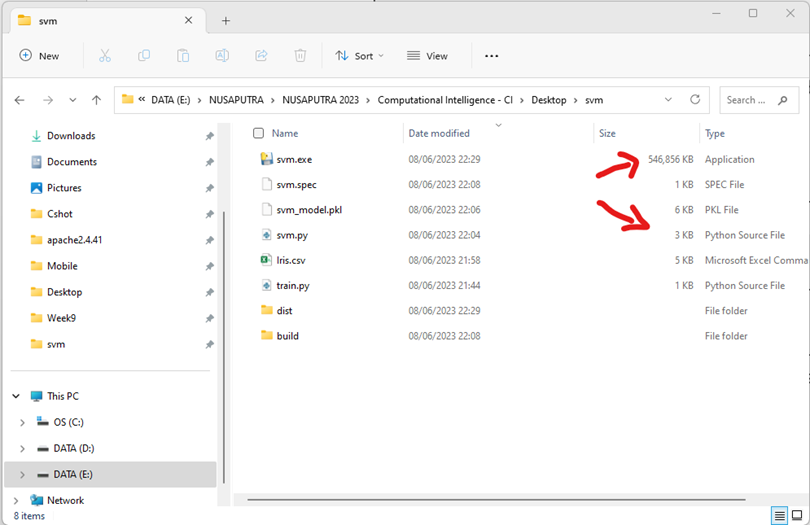
Tergantung besar atau kecilnya file py, pyinstaller akan mengkonversi menjadi exe. Hasilnya adalah sebuah file tesgui.exe yang terletak di folder dist.
The conversion of the .py file to an .exe file by PyInstaller depends on the size of the Python file. The result will be a tesgui.exe file located in the “dist” folder.

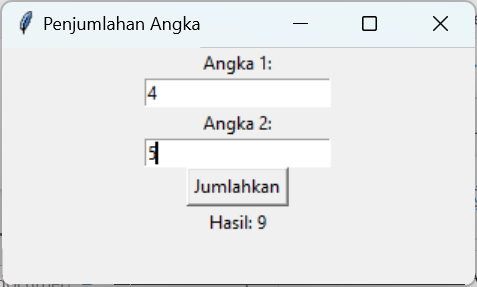
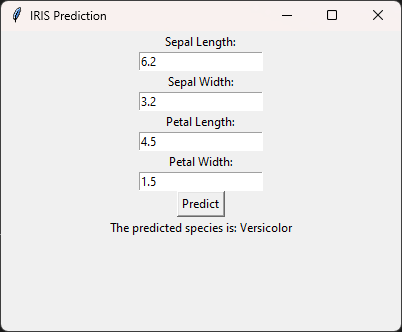
Jalankan saja file hasil kompilasi tersebut, tinggal dobel klik saja. Hasilnya akan muncul seperti berikut ini. Sederhana bukan? Silahkan coba model yang lebih kompleks, untuk tensorflow sepertinya perlu perlakuan khusus, karena sempat saya coba tidak muncul hasil eksekusi-nya, hanya GUI saja.
Just run the compiled file by double-clicking on it. The result will appear as follows. Simple, isn’t it? Feel free to try more complex models. For TensorFlow, it may require special treatment because when I tried it, the execution results didn’t appear, only the GUI.





 Rahmadya Trias Handayanto